28
Is This Website Down? How to Check Site Status in Seconds | Whoy Tools
Is this website down for everyone or just you? Check any site's real-time status, HTTP response codes, and uptime instantly with Whoy’s free diagnostic tools
We’ve all been there. You’re trying to access your favorite site—maybe it's a critical tool for work, a social media platform, or even your own blog—and suddenly, the page just won't load. You see that dreaded "Site Can’t Be Reached" message, and the panic sets in.
Is the internet out? Is your router acting up? Or is the website itself having a meltdown?
In the tech world, we call this the "Down or Just Me" dilemma. Today, I’m going to show you exactly how to diagnose this problem like a pro, why it happens, and how to use the Whoy Website Status Checker to get answers in seconds.
Why Websites Go Dark: It’s Not Always What You Think
When a site goes offline, it’s rarely just "broken." There’s usually a specific technical reason behind the scenes. Understanding these can help you figure out if the problem is on your end or theirs.
1. Server Overload
Think of a website's server like a physical store. If 1,000 people try to walk through a door meant for 10, everything grinds to a halt. This often happens during viral moments, big sales (like Black Friday), or unfortunately, during a DDoS attack (Distributed Denial of Service).
2. DNS Issues
DNS is like the "phonebook" of the internet. It translates a name like whoy.net into an IP address. If the DNS records are misconfigured or the DNS provider is having an outage, your browser won't know where to go, even if the website's server is perfectly fine.
3. Maintenance Windows
Sometimes, companies need to "clean the house." They take the site offline to update security patches or add new features. Usually, they do this late at night (US Eastern Time), but it can still catch you off guard.
How to Check if a Website is Down (Step-by-Step)
Before you start clearing your browser cache or restarting your computer, follow this simple checklist.
Step 1: Use a Reliable Status Checker
The fastest way to get an unbiased answer is to use an external tool. Our Website Status Checker pings the target URL from an independent server. If our tool says it's down, then the problem is definitely on the website's side.
Step 2: Try the "Incognito" Test
Sometimes your browser's "cookies" or "cache" can show you a broken version of a site that is actually working. Open a Private/Incognito window and try the URL again. If it works there, you just need to clear your browser data.
Step 3: Check Your IP Address
In some cases, a website might accidentally block your specific IP address (perhaps due to a firewall error). To see if your IP is the issue, you can quickly verify your current connection details using our Whats My IP tool. If you can access the site via a VPN but not your regular connection, your IP might be blacklisted.
Understanding HTTP Status Codes (The Secret Language of Servers)
When you use our status checker, you might see a "Status Code." These numbers tell a story. If you're a developer or a curious user, knowing these is a superpower.
- 200 OK: Everything is perfect! The site is live.
- 403 Forbidden: The server understands the request but refuses to authorize it. This often happens with geographic blocks.
- 404 Not Found: The server exists, but that specific page does not.
- 500 Internal Server Error: This is the "catch-all" for server-side crashes. It’s definitely their fault, not yours.
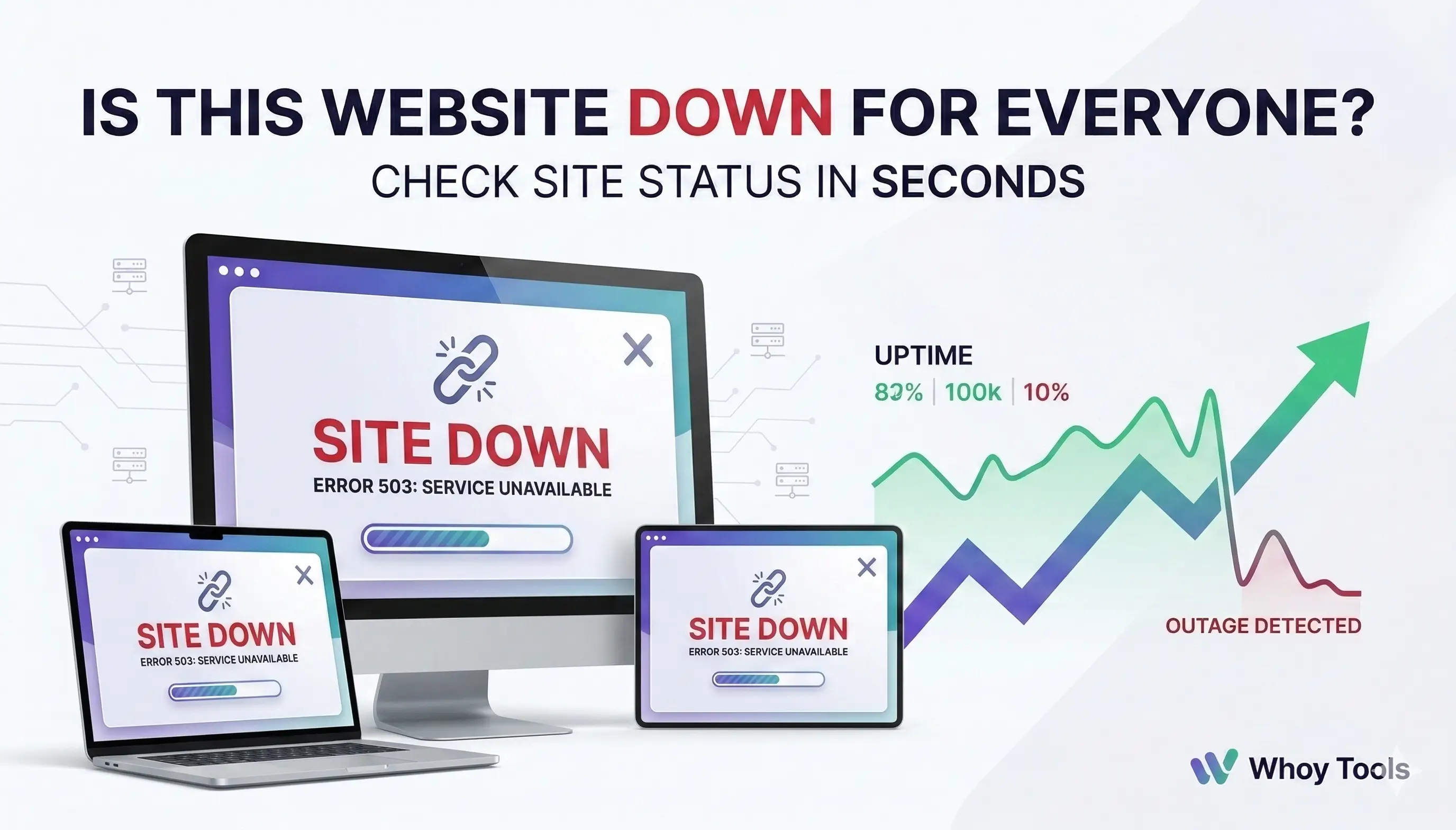
- 503 Service Unavailable: Usually means the server is overloaded or down for maintenance.
If you ever see a strange code and want to dive deeper into what it means for your SEO or site health, check out our HTTP Status Code Checker. It provides a more granular look at what the server is "whispering" to your browser.
Is it a Local Network Issue?
If our tool shows the website is UP, but you still can't access it, the problem is local. Here is what to do:
- Check your ISP: Sometimes local providers in the US (like Comcast or AT&T) have regional outages.
- Restart your Router: It sounds like a cliché, but "turning it off and on again" clears the router's temporary memory and can fix DNS hangs.
- Flush your DNS: On Windows, you can open the Command Prompt and type ipconfig /flushdns. This clears your computer's "phonebook" and forces it to look up the site fresh.
Pro Tip for Website Owners: Secure Your Site
If you are a webmaster and you find your site is down frequently, you need to look at your backend security. Hackers often target site vulnerabilities. One way to ensure your user data is handled securely is by using encryption. If you're building a login system, for example, never store passwords in plain text. Use our Bcrypt Generator to create secure, hashed versions of your passwords to keep your database safe from leaks.
Conclusion: Don't Guess, Verify!
In the fast-paced digital world of 2026, downtime equals lost money and frustrated users. Whether you are a casual surfer or a professional developer, having a reliable set of tools is essential.
Next time a page fails to load, don't waste time wondering "is it just me?" Use Whoy's suite of web tools to diagnose, verify, and get back to work.
Click here to check a website status now!
Contact
Missing something?
Feel free to request missing tools or give some feedback using our contact form.
Contact Us